Free Online Image Converter
If you also want to convert images for free in WebP, JPG, PNG, HEIC, AVIF, SVG, GIF and more, in seconds, then you have come to the right place.
Whatever image you convert here, it is made in your own browser and downloads from there, and saves easily in the storage of your phone or laptop. You can then use it for your work at any time.
On our site, you do not have to sign up, and you do not have to install any software. You only have to add, in the tool box given above, the file that you want to convert, by upload or by drag and drop. After that, choose the format, set the quality, and click the green Convert button. The Download button will appear in front of you. Simply click it, and in 2 to 5 seconds your file will be saved with you. If the file is very big, it can take a little more time, but converting does not depend on your internet speed, because nothing is uploaded.
The list of all the converters given here is below. You can look at it, explore, and use any converter you like, for free.
Popular Image Converters
On Fast Image Converter, we have made a separate page for each one, so that you can save images in different formats easily. This saves your time, and your work gets done right away. You only have to pick the tool you need, which are given below. Then upload your file and download the result.
Make WebP images open on every device and app.
Turn iPhone photos into JPG files that work everywhere.
Make big PNG files small and easy to share.
Save a JPG as PNG when you need a transparent background, or when you want the quality to not go down more in later saves.
Convert WebP pictures and keep clear quality.
Make website photos load faster with small WebP files.
Shrink PNG files for your website and keep transparency.
Change new AVIF pictures into simple JPG files.
Turn vector logos and icons into clear PNG images.
Save a GIF as a JPG photo. Please note, a moving GIF becomes one still picture, the first frame.
Make heavy BMP files small and easy to send.
Make an image file smaller without changing its format.
What Is an Image Converter?
An image converter changes a picture from one file format to another. Think of a format as a box. The picture inside stays the same, but every box has its own rules. Some boxes are small. Some keep more detail. Some open on every device, and some do not.
You may need a new box for simple, daily reasons. A website accepts only JPG. Your iPhone saves photos in HEIC, but your computer cannot open them. A PNG file is too big to send by email. A WebP image saved from a website does not open in your photo app.
This page solves these small problems in one place. Add your file, pick the new format, and download the result. And all of this is completely free. You do not have to log in, and you do not have to take any subscription.
How to Convert an Image Online
With this fast tool of ours, you can convert your images right away, for free, and with ease. There is no big difficulty in it. Even if you are completely new, you can do it easily. You only have to follow the steps given below.
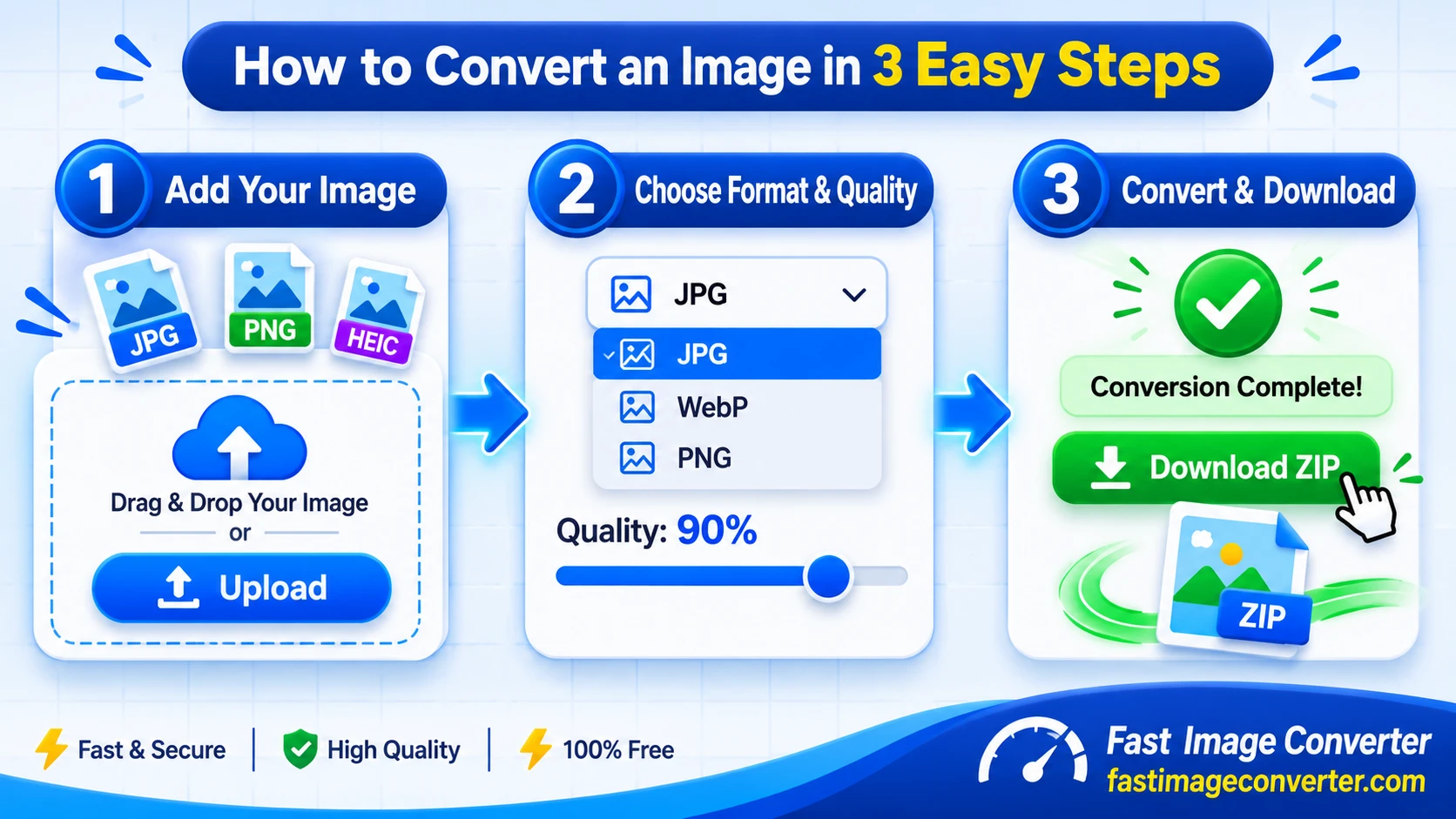
Add Your Image
First of all, drag your file into the box above, or press the upload button and pick a file.
You can add one file in it, or up to 20 files at the same time.
Each file can be up to 25 MB. The tool reads the format of your file on its own.
Choose the Output Format
After that, choose the new format, such as JPG, PNG or WebP.
One thing to remember here. JPG cannot keep a transparent background. If the background of your picture is clear (transparent) and you save it as JPG, that clear part will turn white.
If a quality slider comes with the new format, the slider starts at 90. This gives good quality and the file stays small. Move the slider up for more quality, or down for a smaller file.
Convert and Download
After doing all the points above, you only have to press the Convert button.
In a few seconds, your new file will be ready.
You can download each file separately, or save all your files together in one ZIP file.
And for all of this, you do not have to install anything, and you do not have to make any paid account either. Everything here is free. Use it as much as you like. It has been made for everyone's ease.
Supported Image Formats
All the formats that this fast and free image converter can make, and can read along with that, are given in order in this table for your ease. It also tells you what each format is best for.
| Format | What it is best for | Keep transparency? |
|---|---|---|
| JPG (JPEG) | Photos, sharing and printing. Opens on every device | No |
| PNG | Logos, screenshots and pictures that need clear detail | Yes |
| WebP | Websites. Good quality in a small file | Yes |
| HEIC | iPhone photos. High quality in less space | No |
| AVIF | New web format. Very small files, rich colours | Yes |
| SVG | Logos and icons made of lines and shapes | Yes |
| GIF | Short animations and simple moving pictures | Yes |
| BMP | Old Windows format. Full detail, no compression | No |
| ICO | Small icons for websites and apps | Yes |
Two simple points will help you understand this table.
Some formats are lossy. They make a file small by removing a tiny bit of detail. JPG, WebP and AVIF work this way.
Some formats are lossless. They keep every bit of detail, so the file stays big. PNG works this way.
Neither one is bad. They are made for different jobs and work for you.
Why Use Fast Image Converter?
If you also want to know why you should use Fast Image Converter, then its biggest and most important reason is this. It has been made only and only for your ease, so that whichever formats you need, you can get them here for free, in high quality, in just a few clicks. You do not have to take any other paid tool, and your money does not get wasted for nothing. And the best and finest thing is this. Whatever image you convert stays only in your browser and only with you. Here, your privacy is fully taken care of. No personal detail is ever asked from you, so your privacy stays 100% safe.
Your Files Stay Private
You must have seen that most online converters ask you to upload your photo to their server. Some keep it for 2 hours, some for 24 hours, then delete it.
But our tool is different from them. All the work happens inside your own browser, on your own device. Your photo never leaves your phone or computer, so there is nothing with us to store or delete.
It Is Fast Because There Is No Upload
On other platforms, on a slow internet, uploading one big photo can take more time than the conversion itself. Here, that wait is not there at all. You add the file, and the work starts at once.
All Converters Are in One Place
You do not need one website for WebP, another for HEIC, and a third one for PNG.
But here, every popular conversion is present, and every tool has its own page, so that as soon as you click, you can go straight to the same tool that you searched for or clicked.
You Control the Quality
For JPG, WebP and AVIF, you get a simple quality slider. A big number means more detail. A small number means a smaller file. The slider starts at 90, which is a good balance for daily use. PNG has no slider, because PNG never drops quality. That is how the format works.
It Works on the Device in Your Hand
This free image converter runs in the browser of your phone, tablet or computer. You do not have to download any app, and you do not have to fill any sign up form. You can convert up to 20 files at the same time and download them all in one ZIP file.
Which Image Format Should You Choose for Your Website, iPhone, Logo or Print?
This is the question most people ask the most. Its simple answer is this, it depends on what you want to do with the picture. If the picture is for a website, a small format like WebP or AVIF is best, because the page opens fast. If it is an iPhone photo that does not open on your computer, JPG is the safe answer. If it is a logo with a clear background, you need PNG or WebP, because JPG turns that clear part white. And if you want to share a picture or print it, JPG works almost everywhere. The four simple cases below will help you pick the right format in a few seconds.
For a Website: WebP or AVIF
Websites need small files so pages open fast. In the test done by Google, WebP files were 25 to 34 percent smaller than JPG files of the same quality. AVIF files can be even smaller, but the real saving depends on the picture. Use JPG to WebP or PNG to WebP to make your website faster.
For iPhone Photos: HEIC to JPG
Since 2017, iPhones save photos in HEIC format. HEIC keeps good quality in about half the space of JPG. But many computers, websites and apps still cannot open HEIC files. When a HEIC photo does not open, convert it to JPG, and it will work everywhere.
For Logos and Transparent Images: PNG or WebP
Some pictures have no background. You can see through some of their parts. This is called transparency, and JPG does not support it. If you save such a picture as JPG, the empty part will turn white. For logos, icons and stickers, use PNG or WebP, so the clear background stays clear.
For Sharing and Printing: JPG
JPG is the safest choice in the world of images. Every phone, computer, printer and website can open it. If you want to send a photo to a friend, upload it to a form, or print it, JPG will almost always work. The WebP to JPG tool is the one our visitors use the most.
We Tested It Ourselves: What Really Happens to File Size
Talk is easy. Numbers tell the truth. So we did not just write about this tool, we tested it ourselves with a real picture.
We took a detailed invitation mockup photo in JPG. Its size was 3.1 MB. We set the quality at 90 and converted it to WebP. In only 2 to 5 seconds, the new file was ready, and its size was only 689.8 KB. When we opened the converted picture, it looked clear and sharp. Even the small text written on the invitation could be read easily.
| File | Size |
|---|---|
| Original JPG | 3.1 MB |
| WebP, quality 90 | 689.8 KB, 78 percent smaller than the JPG |
Please read these numbers in the right way. Your result will not be exactly the same, because every picture is different. A simple picture becomes much smaller. A busy photo becomes less small.
But one lesson is the same for everyone. Going from JPG or PNG to WebP makes a file much smaller. Going from JPG to PNG makes the file bigger, not smaller.
Image Quality and File Size: Three Common Myths
Many people think that converting a picture always makes the file smaller. This is not true. It depends on the two formats.
If you turn a PNG photo into JPG, the file will become much smaller, because JPG removes a little detail. But if you turn a small JPG photo into PNG, the file will become bigger, because PNG keeps every bit of detail. The picture itself does not change. Only the box around it changes.
Here are three common myths, which we have explained in simple words.
Myth 1: JPG to PNG Brings Back the Lost Quality
No, it does not. When a photo is saved as JPG, some detail goes away forever. Saving that JPG as PNG saves the file from more loss, but it cannot bring back what has already gone.
Myth 2: Converting Never Makes the Quality Bad
Only lossless formats, like PNG, keep full quality. When you convert to JPG, WebP or AVIF, the quality depends on the slider. At 85 to 95, the change is so small that most people cannot see it. At very low settings, you will see it.
Myth 3: Saving a Photo as SVG Makes It a Vector
Not at all. Because SVG is a format that is made of lines and shapes, like a logo. Putting a photo inside an SVG file does not change that photo into lines and shapes.
Common Problems and Their Quick Fixes
Sometimes it happens. You add your file, you press Convert, and the result is not what you were hoping for. The heart says at once, the tool is bad. But most of the time, the tool is not bad at all. Some small reason has come in the way. The file became a little too big, the browser is old, or the phone already has too much load on it.
There is no need to worry. Below are the five common problems that happen with people the most, and with each one is the fix that really works. Try them one by one, in order, and your work will get done. And if a problem still does not go away, please close the site once and open it again with a fresh page.Many small problems end with just this much.
My File Is Bigger Than 25 MB
The tool takes files up to 25 MB. If your file is bigger than this, first use the Image Compressor on this site, or convert the file to JPG. Both ways will make the file smaller. Then try your main conversion again.
My HEIC Photo Does Not Open or Convert
This can happen in an old browser. Update your browser and try again. If it still fails, open the photo on your iPhone, take its screenshot, and convert the screenshot. A screenshot is not the best quality, but it does the job in an emergency.
The Conversion Stopped in the Middle
Close the other heavy tabs of your browser, refresh this page, and try again with fewer files. Converting 20 very big files at the same time can be heavy for a small phone. Try 5 files at a time.
My Format Is Not in the List
Camera RAW files, like CR2 and NEF, are not supported yet. First save the RAW photo as JPG in your camera app or photo app, then convert that JPG here.
My Converted Picture Looks Soft or Blurry
Take the quality slider up to 95 and convert again. A low slider makes a small file, but it also removes more detail. For printing, always keep the slider at 90 or above.
FAQs About This Free Online Image Converter
1. Is this image converter free?
2. How do I convert an image to JPG?
3. Can I convert WebP to JPG?
4. Can I convert iPhone HEIC photos to JPG?
5. Can I convert PNG to JPG and JPG to PNG?
6. Can I convert JPG or PNG to WebP?
7. Is there a file size limit?
8. Can I reduce an image size in KB?
9. Do you keep my files?
10. I converted an animated GIF to JPG, why is it not moving?
11: Does the converted file keep my photo's location and camera info?
Final Verdict
So the summary is this, you can use this image converter completely free, convert your images to any format you choose, and download and save them. You have been given 12 converters in one place, and for your ease, separate pages have also been made for all of them. How to use them has also been explained, so that everything stays easy for you. Most important of all, we have shown you with our own test above that a 3.1 MB file became 689.8 KB, and that too in just a few seconds.
Along with this, your privacy has also been fully taken care of. Your file converts in your own browser, it is uploaded nowhere, and the quality stays in your own hands with the slider. And yes, the best part: all of this is completely free, no sign up, no subscription. If any problem comes while using it, its fix is also present on this page above. Explore it and follow it just as it is, and your problem will be solved right away.
One last thing, from the heart. Fast Image Converter is not the official website of any format or brand. It is a small, independent tool website, made only for your ease, and we have tried our best to keep every piece of information on this page correct and in simple words.